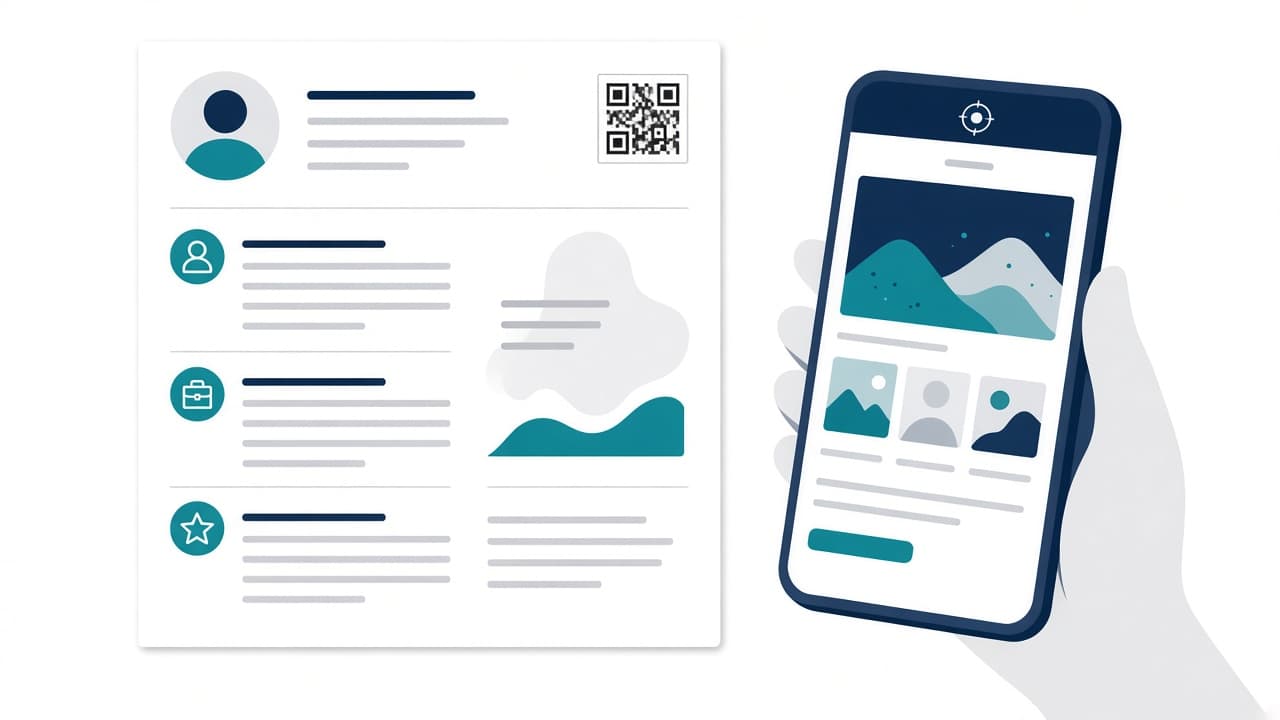
A designer hands a printed resume to a hiring manager at a career fair. The manager wants to see the portfolio, but typing a long URL from paper into a phone is a chore. One quick scan of a small square in the corner, and the work is on screen.
That's the case for a QR code on a resume. The case against it is just as real: on an online application, a QR code is a picture that an applicant tracking system can't read, and it takes up space that could hold a keyword.
So the answer isn't yes or no. It's "in the right version, in the right spot, pointing at the right page."
What a QR code can (and can't) do on a resume
QR codes were developed in 1994 by Denso Wave to track automotive parts, according to the company's own history of the QR code. Today almost every phone camera reads them without an app.
On a resume, a QR code is useful for exactly one thing: getting a human from paper to a web page faster. That page might be your portfolio, a GitHub profile, a video introduction, a published case study or your LinkedIn profile.
What it can't do:
- It can't be read by an ATS. To a parser it's an image, the same as a logo. It carries no keywords and no contact data.
- It can't replace a written link. Someone reading your resume on a laptop can't scan their own screen easily.
- It can't make weak work look strong. If the page behind it isn't worth visiting, the code just gets you to a disappointment faster.
When a QR code makes sense
- Printed resumes for career fairs, networking events and in-person interviews
- Creative and visual roles where seeing the work matters: design, architecture, photography, UX, video
- Technical roles with a showcase: a live project demo, a GitHub profile, a technical blog
- Roles where personality matters and you've recorded a short video introduction
When to skip it
- Online applications through an ATS portal, where every square inch should be readable text
- Conservative industries where it may read as gimmicky
- When you have nothing to link to beyond a LinkedIn profile you've already listed as text
A practical approach is to keep two versions: an ATS-safe version for portals, and a print version with a QR code. ATS Resume OS's Resume Versions tool makes it easy to keep those straight.

How to add a QR code to your resume, step by step
1. Pick one destination
One code, one page. Your strongest portfolio or project page is usually the best choice. Avoid linking to a homepage that makes people hunt for the work.
2. Generate a clean, high-resolution code
Use a free QR code generator with no watermark such as qrfyy, which lets you create a code without signing up and download it as PNG, SVG, PDF or EPS. For print, SVG or EPS are ideal because they stay sharp at any size; a high-resolution PNG also works.
Avoid generators that stamp a logo or watermark on the code, or that route scans through a redirect you don't control and might disable later.
3. Keep it plain
Black on white, with a clear margin (the "quiet zone") around it. Fancy colors and logos in the middle can look nice but reduce scan reliability, especially on low-quality printers.
4. Size it sensibly
About 2–2.5 cm (0.8–1 inch) square is generally enough for a phone held at a normal reading distance. Bigger is wasted space; much smaller risks failed scans.
5. Place it where it doesn't push content
Good spots: the top-right corner beside your contact block, or the bottom of the page. Never inside a header or footer region you rely on for anything else, and never in place of your contact details.
6. Always pair it with a written URL
Next to the code, write the link as text, for example "portfolio.janedoe.com" or "github.com/janedoe." This keeps the link readable for an ATS, for anyone reading on screen and for anyone whose camera doesn't cooperate.
7. Test it on real devices
Print the page, then scan with an iPhone and an Android phone, from arm's length, in normal room lighting. Make sure the page loads quickly and looks good on mobile, because that's where every scan lands.
Make the destination worth the scan
The QR code is only the door. What's behind it decides whether it helps you:
- Mobile first. The visitor is on a phone. Large text, fast loading, no pop-ups.
- Lead with your best two or three pieces. Don't make anyone scroll through everything you've ever made.
- Repeat the basics. Name, role you want, contact button.
- Make it findable. If the hiring manager later searches your name, your portfolio should show up. If you're serious about building that kind of visibility, a link-building agency like ClerkSEO offers guest posting on real, traffic-verified sites, the kind of placement that helps a personal brand site earn authority over time.
Keep the ATS version clean
Before you upload your resume to an application portal:
- Remove the QR code, or confirm the written URL is right beside it.
- Make sure the code isn't the only place your portfolio link appears.
- Run the file through the free ATS Resume Checker to confirm your contact block and links were picked up as text.
Frequently asked questions
Should I put a QR code on my resume?
Put one on printed resumes when it links somewhere valuable, like a portfolio or project demo. Skip it on ATS-bound applications or keep it small with a written URL beside it.
Can ATS read QR codes on a resume?
No. An ATS treats a QR code as an image and ignores it. Always include the same link as plain text.
Where should a QR code go on a resume?
The top-right corner next to your contact info, or the bottom of the page. Keep it out of the main body so it doesn't push your experience down.
What size should a resume QR code be?
Roughly 2–2.5 cm (0.8–1 inch) square with a white margin around it is typically enough for a phone to scan from normal reading distance.
What should a resume QR code link to?
A single, mobile-friendly page: your portfolio, a strong project, a GitHub profile or a short video introduction. Avoid long redirect chains or pages that require logging in.
Is a static or dynamic QR code better for a resume?
A static code that points directly to a URL you own is the most reliable, since it doesn't depend on a third-party redirect staying active. If you want to change the destination later, point the code at a page on your own domain and update that page.
Bottom line
A QR code is a small convenience for the human who's holding your resume, not a trick for beating software. Use it on print versions, link it to your best work, keep the written URL beside it, and keep your ATS version text first.